
Better Blog Formatting. Better Presentation. Better Search Results. Get Started
Facebook LinkedIn WhatsApp YouTube
Post Uploader
  • Home
  • About
    • About Us
    • Leadership Team
    • Awards & Recognition
    • Request Consultation
    • Pricing Plans
    • Help & FAQs
    • Careers
  • Services

    Services

    • Financial Planning
    • Wealth Management
    • Portfolio Consulting
    • Mergers & Acquisitions
    • Sustainability Assurance
    • Crisis Management

    Industries

    • Banking & Finance
    • Sciences & Healthcare
    • Technology & Software
    • Education & Training
    • Hospitality & Leisure
    • Power & Utilities
  • Case Studies
    • Case Studies Modern
    • Case Studies Standard
    • Case Studies Grid
    • Single Case Study
  • Blog
Get in Touch Get in Touch
  • Home
  • Blog
  • Blog Post Formatting Guides
  • How to Display Related Posts in WordPress to Boost Engagement
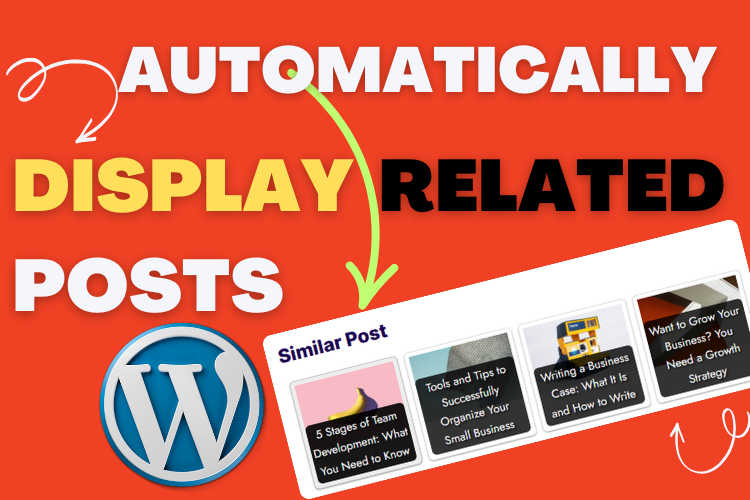
Learn how to display related posts WordPress
contextual related postsimprove blog engagementrelated posts pluginWordPress tutorials
PostUploader.com
March 17, 2024
Blog Post Formatting Guides
0 Comments:

How to Display Related Posts in WordPress to Boost Engagement

Embedding related posts on your WordPress blog can significantly enhance user experience, keep visitors on your site longer, and improve SEO metrics.

Whether you are new to WordPress or looking to refine your blog’s functionality, this guide provides a step-by-step walkthrough. Watch the embedded video below for visual instructions and read on for detailed insights.

Watch the video below to see how to configure related posts in WordPress:

  • Why Adding Related Posts in WordPress Is a Game Changer
  • Step-by-Step Guide to Display Related Posts in WordPress
    • Install the Contextual Related Posts Plugin
    • Initial Configuration of the Plugin
    • Key Plugin Settings You Should Configure
      • Caching Options
      • Automatically Add Related Posts
      • Content Inclusion and Relevance
    • Display Settings for Related Posts
      • Number of Posts to Display
      • Order and Randomization
      • Headline Customization
    • Styling Your Related Posts Section
    • Advanced Tips for Optimizing Related Posts
      • Exclude Pages from Related Posts
      • Use Descriptive Thumbnails
      • Set a Title Length Limit
  • Frequently Asked Questions About Related Posts in WordPress
  • Conclusion: Engage Your Readers with Related Posts

Why Adding Related Posts in WordPress Is a Game Changer

Related posts act as a bridge to keep readers exploring your blog. By showcasing articles similar to what they’re already reading, you make their browsing experience seamless. This feature improves user retention, reduces bounce rates, and increases overall page views. Plus, it’s an excellent way to highlight your best content.

Engaged readers become loyal followers, and loyal followers drive traffic and conversions.

Let’s dive into the detailed steps of adding related posts to your WordPress blog.

Step-by-Step Guide to Display Related Posts in WordPress

Install the Contextual Related Posts Plugin

To begin, go to your WordPress dashboard:

  1. Navigate to the Plugins section and click on Add New.
  2. Search for “Contextual Related Posts.”
  3. Click Install Now and then Activate.

This plugin is a powerful tool that allows customization and easy integration of related posts into your blog.

Initial Configuration of the Plugin

Once activated, follow these steps:

  • Skip or Allow Updates: You’ll be prompted to allow updates. You can either allow or skip, as it won’t affect the plugin’s core functionality.
  • Customize Plugin Settings: Head to the plugin settings to tweak features according to your needs.

Key Plugin Settings You Should Configure

Caching Options

  • Disable Cache Post Only: Unless necessary for your website, deselect this option.
  • Disable Cache HTML Output: Keep it unchecked unless you have specific requirements.

Automatically Add Related Posts

  • Deselect the option to automatically add related posts. This ensures better control over placement and aesthetics.

Content Inclusion and Relevance

  • Choose the post types to include (e.g., posts but not pages).
  • Set relevance parameters such as “Title and Content” for more accurate recommendations.

Display Settings for Related Posts

Number of Posts to Display

  • By default, the plugin displays six posts. Adjust this number based on your design preferences.

Order and Randomization

  • Select “By Relevance” to ensure the displayed posts match the reader’s interests.
  • Enable Randomize Posts to keep the recommendations dynamic and engaging for repeat visitors.

Headline Customization

  • Modify the default “Related Posts” heading to something like “You May Also Enjoy” or “Explore More Posts.”
  • Use appropriate heading tags (H2, H3) for better SEO structure.

Styling Your Related Posts Section

The plugin offers multiple styling options, such as:

  • Grid Layout: A clean and professional look.
  • Rounded Thumbnails: Ideal for a modern aesthetic.
  • Text-Only Style: Minimalistic and distraction-free.

Experiment with these styles in the Style tab and choose what complements your blog design.

Advanced Tips for Optimizing Related Posts

Exclude Pages from Related Posts

Including pages can dilute the relevancy of your recommendations. Disable pages in the plugin settings to focus solely on blog posts.

Use Descriptive Thumbnails

Ensure that post thumbnails are visually appealing and relevant to the article content.

Set a Title Length Limit

Long post titles can disrupt the layout. Use the title length limit feature to maintain consistency.

Frequently Asked Questions About Related Posts in WordPress

Contextual Related Posts is highly recommended for its flexibility, ease of use, and customization options.

Yes, the plugin allows manual placement using a block editor. Simply search for “Contextual Related Posts” in the block options.

Absolutely! Related posts improve internal linking, reduce bounce rates, and increase time-on-site, which are all beneficial for SEO.

You can choose from various styles in the plugin settings, such as grid layout, rounded thumbnails, or text-only.

Yes, use the plugin’s settings to include or exclude specific categories or tags.

Monitor your analytics for metrics like page views, bounce rates, and average session duration to gauge the impact.

Conclusion: Engage Your Readers with Related Posts

Displaying related posts in your WordPress blog is more than just a feature—it’s a strategy to engage your readers and improve site performance. Follow the video and steps above to implement this feature effortlessly.

For personalized assistance or advanced customization, feel free to contact us.

Don’t forget to subscribe to our YouTube channel for more tutorials and updates.

  • contextual related posts
  • improve blog engagement
  • related posts plugin
  • WordPress tutorials
Share
Prev Post Next Post

Recent Posts

Before vs. After: How Blog Post Formatting Transforms the Same Content
May 19, 2025
Blog Post Formatting Services
Weekly Blog Post Formatting Services: Save Time and Improve Quality
May 4, 2025
how to format a blog post
How to Format a Blog Post Like a Pro: The Ultimate Guide to Presenting Your Blog Beautifully
Apr 9, 2025

Tags

  • Adding Featured Images
  • Add Media and Text in WordPress
  • Add Text Over Images in WordPress
  • AffiliateX Plugin
  • Affiliate X Plugin
  • Blog Engagement
  • blog formatting
  • Blog Formatting Tips
  • Blogging Tips
  • Blog Post Formatting
  • Blog Post Optimization
  • Business
  • classic editor
  • Combine Media and Text in WordPress
  • Digital
  • Funds
  • Gutenberg editor
  • Gutenberg Editor Tips
  • Install Jetpack Plugin
  • Jetpack Features Guide
  • Kadence Block
  • Kadence Blocks
  • Leadership
  • SEO Optimization
  • Tech
  • Text Overlay in WordPress
  • WordPress Blog Optimization
  • WordPress Blog Post Formatting
  • WordPress Blog Tips
  • WordPress Content Management
  • WordPress Customization
  • WordPress Design Without Photoshop
  • WordPress Editing Tips
  • WordPress formatting
  • WordPress Image Upload
  • WordPress Media and Text Block
  • WordPress Plugin
  • WordPress Plugins
  • WordPress SEO
  • WordPress Text Formatting
  • WordPress Tips
  • WordPress Tutorial
  • WordPress tutorials
  • WordPress user roles
  • WordPress without Plugins
PostUploader.com

Quick Contact

75 E 3rd St Sheridan, WY 82801, USA info@postuploader.com +1 (307) 310-2432

We accept payments via
Stripe, including Visa,
MasterCard, American
Express, Discover, and
other major credit and debit
cards.

About

  • Consumers
  • Growth
  • Corporate
  • Business

Services

  • Consumers
  • Growth
  • Corporate
  • Business

Industries

  • Consumers
  • Growth
  • Corporate
  • Business
  • Consumers
  • Growth
  • Corporate
  • Business

©2022 - Post Uploader, All Rights Reserved.

PostUploader
Our specialist team understands the importance of maintaining a lasting relationships with clients to deliver specific investment solutions.
Contact Us

Contact Info

75 E 3rd St Sheridan, WY 82801, USA info@postuploader.com +1 (307) 310-2432
Live Chat
1
Scan the code
Message Us on WhatsApp
Hello,
Welcome to PostUploader.com
May I help with your Blog Post Formatting and Publishing?
Start a Chat

