
- Home
- Blog
- Blog Post Formatting Guides
- How to Add Borders to WordPress Blog Post Blocks – Easiest Solution
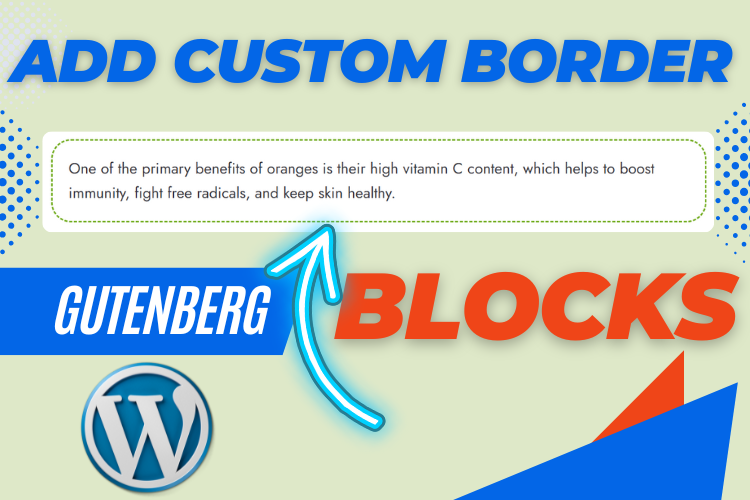
How to Add Borders to WordPress Blog Post Blocks – Easiest Solution
WordPress is a powerful platform, but sometimes, making your blog posts visually appealing can feel like a challenge, especially when you want to add a personal touch like borders around your content blocks.
Borders can make your content stand out, adding structure and style to your posts. But how do you add them in WordPress, particularly if you’re not a tech expert?
Don’t worry! In this article, we’ll break down the easiest solutions for adding borders to WordPress blog post blocks, so you can achieve that polished look without the hassle.
Why Adding Borders to WordPress Blocks Is Important
Borders can drastically change the way your blog posts are perceived. They help frame content, making it easier for your readers to focus on specific sections. Whether you’re showcasing an image, highlighting a quote, or breaking up text-heavy paragraphs, borders provide a subtle yet effective way to enhance the visual flow of your page.
But that’s not all—adding borders to your blocks can also:
- Create better separation between different sections of your post.
- Enhance readability by visually guiding readers through the content.
- Emphasize key points or important sections like quotes or call-to-actions.
- Add professionalism to the overall layout and design.
The good news? You don’t need to be a web developer or know how to code to get the job done. Let’s explore some easy solutions to make your blog posts pop with borders!
Using the Gutenberg Editor to Add Borders to WordPress Blog Post Blocks
The Gutenberg Editor, introduced in WordPress 5.0, revolutionized the way we create blog posts. It uses a block-based system that allows you to structure and customize your content with ease. Here’s how you can add borders to WordPress blocks using the default Gutenberg features.
Step-by-Step Guide:
1. Add a New Block
- Open your WordPress editor and click on the “+” icon to add a new block.
- Choose the type of block you want to add a border to (e.g., paragraph, image, quote, or heading).
2. Access Block Settings
- Once your block is added, click on the block to access its settings.
- On the right-hand side of the editor, you’ll see a toolbar with various customization options.
3. Use the “Advanced” Tab
- Scroll down to the “Advanced” section in the block settings. Here, you can add custom CSS classes that will allow you to style the block however you like.
4. Add Custom CSS for Borders
- In the “Additional CSS Class” field, add a custom class (e.g.,
custom-border-block). - Next, you’ll need to go to your WordPress Dashboard > Appearance > Customize > Additional CSS.
- Add the following CSS code to give the block a border:
CSS Code
.custom-border-block {
border: 2px solid #000; /* Adjust thickness and color / padding: 15px; / Optional padding inside the border / border-radius: 5px; / Optional rounded corners */
}
- Save your changes, and you’ll see the border appear around your block.
Adding Borders Using a WordPress Plugin
If you’re not comfortable adding custom CSS to your site, or you want an easier solution, using a WordPress plugin is the way to go. Several plugins can help you add borders without the need to code. Here are a few of the most popular options.
1. WP Design Enhancer
This plugin provides several design elements, including border control. You can adjust the thickness, color, and style of borders with just a few clicks.
- Step 1: Install the plugin by navigating to Plugins > Add New and searching for “WP Design Enhancer.”
- Step 2: Once installed and activated, go to your post editor.
- Step 3: Select the block you want to edit, and you’ll see new options to customize borders right from the block settings.
2. Borders for Gutenberg Blocks Plugin
A simple plugin that extends Gutenberg’s capabilities by adding border settings directly in the block editor. It’s lightweight and very easy to use.
- Step 1: Install the plugin by going to Plugins > Add New and searching for “Borders for Gutenberg Blocks.”
- Step 2: Once installed and activated, open your blog post editor.
- Step 3: When you click on a block, a new “Borders” option will appear under the block’s settings.
- Step 4: Customize the border style, width, and color from the editor itself, with no need for extra CSS.
Customizing Borders with the Full Site Editor
If you’re using a block-based theme and have access to the Full Site Editor (FSE), you can customize borders not just on individual blocks but on the entire page or post layout.
Here’s how.
1. Access the Full Site Editor
- Go to Appearance > Editor from your WordPress dashboard.
2. Select the Block or Section
- Choose the block or section where you want to add the border. This could be the header, footer, or content area.
3. Customize the Border
- From the editor panel, you’ll find options to adjust the border size, color, and style.
- You can even create more complex designs using gradients or shadows alongside borders.
CSS Tricks for Advanced Border Styling
If you feel confident with CSS, you can go beyond simple borders to create more dynamic and eye-catching designs. Here are some ideas:
1. Dotted or Dashed Borders
CSS Code
.custom-border-block {
border: 2px dashed #333;
}
2. Gradient Borders
CSS Code
.custom-border-block {
border: 3px solid transparent;
border-image: linear-gradient(45deg, red, blue) 1;
}
3. Rounded Corners with Shadows
CSS Code
.custom-border-block {
border: 1px solid #000;
border-radius: 10px;
box-shadow: 0 4px 8px rgba(0,0,0,0.1);
}
4. Double Borders
CSS Code
.custom-border-block {
border: double 4px #000;
}
Best Practices for Adding Borders to WordPress Blocks
While borders can enhance your blog’s look, it’s essential to use them strategically.
Here are some best practices to keep in mind:
- Don’t overdo it. Adding too many borders can clutter your design. Use them sparingly to highlight key sections.
- Keep consistency. Make sure your borders match the overall theme and style of your website. Stick to 1-2 border styles for a cohesive look.
- Test on mobile. Always preview your posts on mobile devices to ensure that the borders don’t disrupt the flow of the content or make it harder to read.
FAQs
Conclusion
Adding borders to WordPress blog post blocks is an easy yet impactful way to enhance the visual appeal of your posts. Whether you’re using Gutenberg’s default features, a plugin, or custom CSS, you can create a well-structured and engaging layout in no time. Borders help emphasize key elements, break up content, and guide your readers through your blog with ease.
So, what are you waiting for? Try out these methods today and make your blog posts stand out!


