
- Home
- Blog
- Blog Post Formatting Guides
- How to Add an Author Bio in WordPress (Free Plugin Tutorial)
How to Add an Author Bio in WordPress (Free Plugin Tutorial)
Creating an author bio on your blog or website is more than just a formality. It’s a fantastic way to add credibility, connect with readers, and improve SEO performance. When readers see a thoughtfully crafted biography, they feel a personal connection to the author and trust their expertise.
As search engines increasingly prioritize content written by reputable authors, having an author bio becomes essential for SEO rankings. If you’re running a blog on WordPress and wondering how to include an author bio at the end of your posts, this guide will walk you through the process.
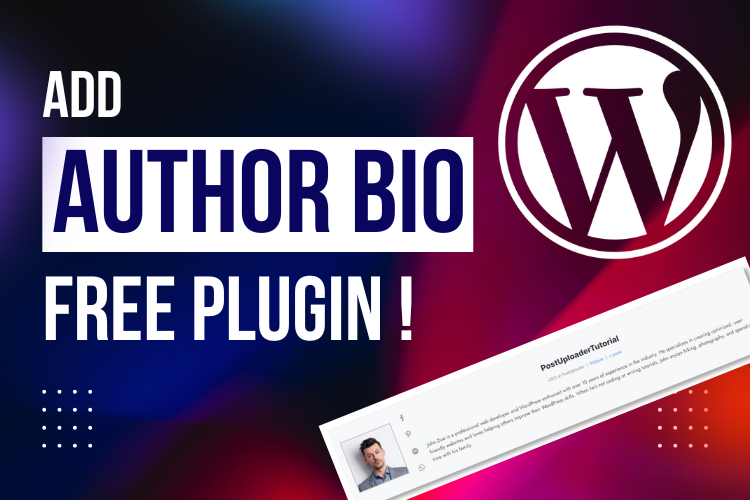
In this tutorial, we will show you a simple method using the Molongui Authorship Plugin that allows you to easily create and display author bios on your WordPress site. This is a valuable feature for bloggers, multi-author websites, and anyone who wants to showcase their expertise.
Why Adding an Author Bio Is Important
An author bio serves multiple purposes. For one, it enhances the credibility of your content by providing some context about the person writing it. A detailed bio can include your qualifications, previous work, and your interests, all of which give readers insight into your expertise.
Additionally, it’s an excellent opportunity to highlight your social media profiles, allowing readers to connect with you outside of your blog.
In terms of SEO, search engines like Google increasingly prioritize content written by known, authoritative authors. A bio with links to verified social media profiles helps improve your site’s overall SEO rankings by giving both readers and search engines more reason to trust your content.
Getting Started: Installing the Molongui Authorship Plugin
The easiest way to add an author bio to your WordPress posts is by using the Molongui Authorship Plugin.
Follow these steps to install and set it up:
- Go to your WordPress dashboard: Once logged into your WordPress dashboard, navigate to the Plugins section.
- Search for Molongui Authorship Plugin: In the plugins section, click on “Add New” and type “Molongui Authorship” into the search bar.
- Install and activate the plugin: Once the plugin appears, click “Install” and then “Activate.”
Configuring the Plugin to Display the Author Bio
Now that you have installed and activated the plugin, it’s time to configure it to display the author bio in the right places.
- Go to the settings page: After activation, you’ll find the plugin settings under the “Settings” menu on the WordPress dashboard.
- Enable the author box: Ensure that the author box is enabled. If it shows as disabled, toggle the switch to enable it. This box will automatically display under your blog posts.
- Choose where the author bio will be displayed: You can decide whether you want the bio to appear only on blog posts or on pages as well. Typically, author bios are shown on blog posts, so leave the setting to “Posts” only.
- Advanced settings: The plugin has a few advanced settings, such as displaying related posts by the same author and choosing whether to upgrade to the premium version for extra features. However, the free version provides everything you need for a basic author bio.
Adding a Custom Author Bio and Social Media Links
After setting up the plugin, you can add a personalized biography for each author on your site.
Here’s how you can do that:
- Go to the Users section: Navigate to the “Users” section in your WordPress dashboard.
- Select the author: Click on the author for whom you want to create a bio. If you are the sole author, click on your own profile.
- Fill in the bio details: You’ll see a new section added by the plugin called “Molongui Authorship Bio.” In this section, you can write a full biography, upload a profile picture, and add links to social media accounts like Facebook, Twitter, and LinkedIn.
- Save changes: After filling in the necessary details, click “Update Profile” to save your changes.
Displaying Multiple Authors
If you run a multi-author blog, the Molongui Authorship Plugin also supports displaying multiple author names. This is especially useful for collaborative posts where several contributors have worked on a single piece.
- Enable multiple authors: In the plugin settings, there’s an option to enable multiple authors for a single post.
- Choose how to display authors: You can choose to display all the author names one by one or only highlight the main author, depending on your preference.
- Link to author pages: Another useful feature is the ability to link the author’s name to their dedicated author page, where visitors can see more information about them and read other posts they’ve written.
SEO Benefits of Using an Author Bio
Including an author bio does more than just add a personal touch to your posts. It plays an important role in boosting your SEO. Google’s algorithms are constantly evolving, and in recent years, there has been a shift towards rewarding content that comes from verifiable, trustworthy authors.
Here’s why having a well-constructed author bio is crucial for SEO:
- Author credibility: When search engines recognize that your content is linked to an author with expertise in a particular field, it’s more likely to rank higher.
- Backlink opportunities: Including links to social media profiles or other websites in your bio can create valuable backlinks, which can improve your domain authority.
- Engagement metrics: Readers are more likely to engage with content written by a known author. This can lead to more shares, comments, and ultimately, higher traffic.
Enhancing Your Author Bio with Social Media Links
One of the standout features of the Molongui Authorship Plugin is the ability to add social media links directly to the author bio. This can significantly increase your social following and make it easier for readers to connect with you.
Here’s how to do it:
- Go to the Users section: As you did earlier, navigate to the “Users” section.
- Add social media URLs: In the author profile, there will be fields where you can enter the URLs for your Facebook, Twitter, LinkedIn, and other accounts.
- Customize the display: You can choose which social media platforms to display based on your preference. For example, if you’re active on Twitter and LinkedIn but not on Facebook, you can opt to display just those two platforms.
- Save your changes: Once done, save your profile and the social media icons will automatically appear in your author bio.
Frequently Asked Questions
In conclusion, adding an author bio to your WordPress blog not only enhances the personal touch of your content but also plays a significant role in boosting your SEO performance.
With the Molongui Authorship Plugin, the process is simple and straightforward, giving you all the necessary tools to display a professional author profile. Be sure to take advantage of the social media integration features and consider adding multiple authors if you run a collaborative blog.
By doing this, you’ll not only improve your Google ranking but also engage your readers on a more personal level.


