
- Home
- Blog
- Blog Post Formatting Guides
- How to Change Gutenberg Toolbar Position to the Top for a Smoother WordPress Editing Experience
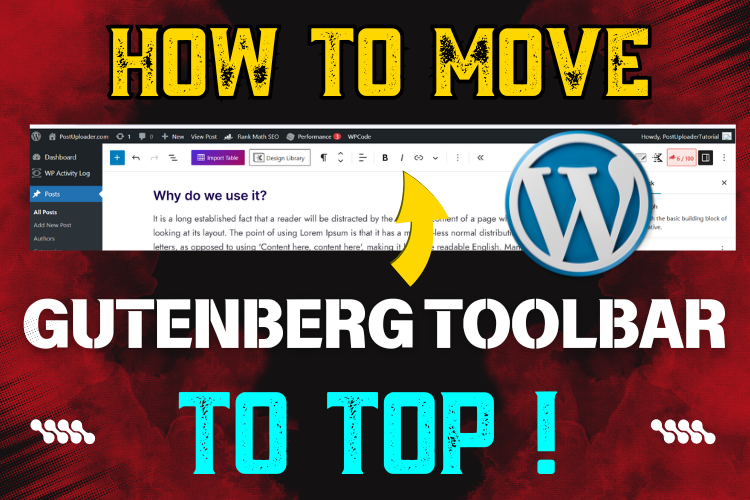
How to Change Gutenberg Toolbar Position to the Top for a Smoother WordPress Editing Experience
Welcome to a quick guide on optimizing your WordPress editing workflow by changing the Gutenberg toolbar position to the top. This straightforward trick can make a significant difference, especially if you frequently edit posts in WordPress.
By default, the Gutenberg toolbar hovers near the selected text or block, but a top-fixed position offers a more seamless experience, keeping the toolbar within easy reach.
So, whether you’re a blogger, a web developer, or simply managing a website, this tutorial will show you exactly how to make this change.
Plus, we’ll discuss the benefits, potential drawbacks, and tips for getting the most out of a top-positioned toolbar.
For a visual walkthrough, check out the video tutorial below. Watching the process step-by-step can make it even easier to follow along and understand how to set up the toolbar exactly as you like.
Understanding Gutenberg’s Toolbar Layout
Gutenberg’s toolbar is a dynamic editing tool in WordPress that adjusts according to the selected block, like headings, paragraphs, lists, or images.
While this flexibility is helpful, the default toolbar position can sometimes get in the way, blocking text or other blocks while editing. This minor inconvenience can disrupt the writing flow, making the case for a fixed toolbar more compelling.
Challenges with Toolbar Position in Gutenberg
You may have noticed that each time you select a different block in Gutenberg, the toolbar jumps to that location. While useful for quick block-specific edits, this setup can become frustrating during extended writing sessions.
The toolbar can obscure text and cause interruptions, especially if you’re focusing on multiple blocks at once. A fixed toolbar position is a simple solution to keep everything you need at the top of your screen, creating a distraction-free workspace.
Benefits of Moving Toolbar to the Top
Setting the Gutenberg toolbar position to the top allows you to:
- Keep the toolbar in a predictable, easily accessible location.
- Avoid blocking text or other important elements on the screen.
- Streamline the writing experience by eliminating the moving toolbar.
In short, it’s a small change with the potential for a big boost in productivity.
Step-by-Step Guide to Changing Toolbar Position
If you’re ready to give this a try, follow these simple steps:
Locating the Three-Dot Menu in WordPress
On the right side of your WordPress dashboard, you’ll notice a vertical set of three dots. This menu provides various options, including the setting for changing the toolbar position.
“The three-dot menu in Gutenberg is your gateway to several customizable settings, including toolbar position.”
Activating the Top Toolbar Option
Once you click on the three dots, you’ll see an option labeled Top Toolbar. Select this, and the toolbar will move to a fixed position at the top of your editor.
Testing the New Toolbar Position
After making this change, test it out by clicking on different blocks. You’ll notice that the toolbar stays in one place at the top, providing a more streamlined editing process.
This fixed toolbar doesn’t shift position based on block selection, giving you uninterrupted control as you navigate your post.
Switching Back to Default Toolbar Position
If you decide you prefer the default toolbar position, it’s easy to switch back. Just revisit the three-dot menu, click on Top Toolbar to deactivate it, and the toolbar will once again follow each block you select.
Pros and Cons of the Top Toolbar Option
Like any feature, the top toolbar option has its strengths and weaknesses.
Pros
- Keeps the toolbar accessible at the top, reducing screen clutter.
- Makes it easier to work on multiple blocks without obstruction.
Cons
- May take a bit of getting used to if you’re accustomed to the dynamic toolbar.
- Less intuitive for quick block-specific actions without scrolling.
Optimizing Workflow with a Fixed Toolbar
With a top-positioned toolbar, you’ll find it easier to focus on your content without needing to maneuver around the toolbar. Using keyboard shortcuts for common actions, like copy-paste or formatting, further enhances your workflow by minimizing time spent on toolbar navigation.
Troubleshooting Common Issues
In some cases, you may encounter a glitch or two when changing toolbar settings. If the toolbar doesn’t seem to lock in place at the top, try refreshing your WordPress editor or clearing your browser cache to apply the new settings effectively.
Frequently Asked Questions
Conclusion
Switching the Gutenberg toolbar position to the top is a practical tweak that can make editing in WordPress more enjoyable and efficient. It reduces distractions, keeps tools within easy reach, and allows you to focus entirely on your content.
Watch the video above for a step-by-step visual guide, and let this simple change improve your WordPress workflow.
For more tutorials, don’t forget to subscribe to our YouTube channel and stay updated with the latest tips!
If you’re interested in uploading blog posts faster, explore the Blog Post Uploader for a streamlined solution. For any questions or personalized assistance, feel free to contact us.


