
- Home
- Blog
- Blog Post Formatting Guides
- How to Show or Hide Admin Toolbar in WordPress
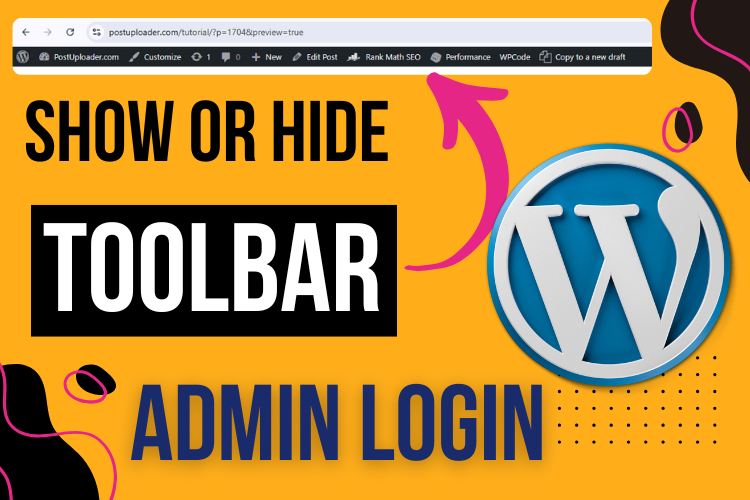
How to Show or Hide Admin Toolbar in WordPress
The WordPress admin toolbar, visible at the top of the screen after login, is a convenient feature designed to simplify website management.
For bloggers, site administrators, and WordPress users, this toolbar acts as a quick-access point to many critical tasks, such as editing posts, managing site settings, and accessing the dashboard.
But did you know you can easily toggle this toolbar on or off depending on your preferences? This guide explores how to manage this feature and make your site management experience as streamlined as possible.
For visual learners, check out the following video, which provides step-by-step instructions to adjust the admin toolbar settings in WordPress.
Importance of Managing the Admin Toolbar Visibility
Managing the visibility of the WordPress admin toolbar can be a subtle yet effective way to control how you navigate your site. Some bloggers prefer to keep their viewing experience clean and distraction-free, especially when previewing posts.
Others find it convenient to have editing options available instantly, without needing to go back to the dashboard. By tailoring the visibility of this toolbar, you ensure that your WordPress workspace suits your unique needs.
Step-by-Step Guide to Hiding the Admin Toolbar
Hiding the admin toolbar is straightforward. If you wish to browse your site without distractions, you can achieve this with just a few clicks.
Follow these steps to hide the toolbar after login:
- Access the Profile Settings – From your WordPress dashboard, go to the “Users” menu and select your profile.
- Locate the Toolbar Setting – In the profile settings, you’ll find a checkbox labeled “Show Toolbar when viewing site.”
- Uncheck the Box – To hide the toolbar, simply uncheck this box.
- Save Changes – Click “Update Profile” to save your changes.
By doing this, the admin toolbar will no longer appear on the frontend when you’re logged in.
Step-by-Step Guide to Showing the Admin Toolbar
If you decide to enable the toolbar to make editing easier, you can reactivate it just as quickly:
- Go to Your Profile – Navigate to the profile settings in your dashboard by selecting “Users” and choosing your profile.
- Check the Toolbar Option – Locate the “Show Toolbar when viewing site” option and check the box.
- Save Changes – Click “Update Profile” to apply the settings.
Refreshing your page will reveal the toolbar at the top of your site, ready to provide quick access to WordPress tools.
“A small change in settings can significantly improve your workflow and site management experience.”
Why Bloggers Prefer the Toolbar Enabled
For many bloggers, keeping the admin toolbar visible saves time. When the toolbar is enabled, you can access the “Edit Post” option directly from any page, streamlining the process of making quick changes.
Without this feature, bloggers would need to return to the dashboard, locate the post in the “All Posts” section, and then click “Edit”—an extra step that can become cumbersome when updating multiple posts.
Editing WordPress Profile Settings for Toolbar Visibility
Changing the visibility settings for the admin toolbar is controlled within your profile settings. You can access this setting by navigating to “Users” > “Your Profile.” From there, simply toggle the checkbox for the toolbar display according to your preference.
Common Issues with Admin Toolbar Visibility
Some users may experience occasional issues with toolbar visibility.
Here are a few troubleshooting tips:
- Check Profile Settings – Ensure the “Show Toolbar when viewing site” option is correctly selected or deselected.
- Clear Browser Cache – If changes aren’t visible immediately, clear your browser’s cache and refresh the page.
- Verify User Roles – Some roles may have restricted access to the admin toolbar.
Benefits of Customizing Toolbar Settings
Customizing toolbar settings is more than just a preference—it can improve your productivity. For example, disabling the toolbar is ideal for those who want an uninterrupted view of their posts, while enabling it can be beneficial for bloggers making frequent edits.
The choice ultimately supports a personalized approach to managing your WordPress site.
“Productivity begins with small adjustments. Personalizing your toolbar settings can set the tone for a smoother workflow.”
FAQs
For more WordPress tips and tutorials, consider subscribing to our YouTube channel. Stay updated on the latest features and tricks to make your blogging journey smoother.
Conclusion
Managing the admin toolbar visibility in WordPress is a simple yet powerful customization that can enhance your workflow. Whether you prefer an uninterrupted view or quick access to editing features, WordPress offers the flexibility to support your preferences. For further guidance, watch the above video tutorial to see each step in action.
If you’re looking for assistance with blog formatting, explore our Blog Post Formatting Pricing Package for affordable options.
Have More Questions? Contact Us for Assistance
For any questions or additional support with WordPress or blog post formatting, feel free to contact us. Our team at PostUploader is here to help with all your blog formatting and uploading needs.


