
Better Blog Formatting. Better Presentation. Better Search Results. Get Started
Facebook LinkedIn WhatsApp YouTube
Post Uploader
  • Home
  • About
    • About Us
    • Leadership Team
    • Awards & Recognition
    • Request Consultation
    • Help & FAQs
    • Careers
    • Contact Us
  • Pricing Plans
  • Services

    Services

    • Blog Formatting & Publishing
    • eCommerce Product Listing
    • Website Content Population
    • AI Workflow Automation
    • Starter Website Package
    • Virtual Assistant Support

    Industries

    • Banking & Finance
    • Sciences & Healthcare
    • Technology & Software
    • Education & Training
    • Hospitality & Leisure
    • Power & Utilities
  • Case Studies
  • Blog
Get in Touch Get in Touch
  • Home
  • Blog
  • Blog Post Formatting Guides
  • How to Combine Table Rows and Columns in WordPress – A Step-by-Step Guide
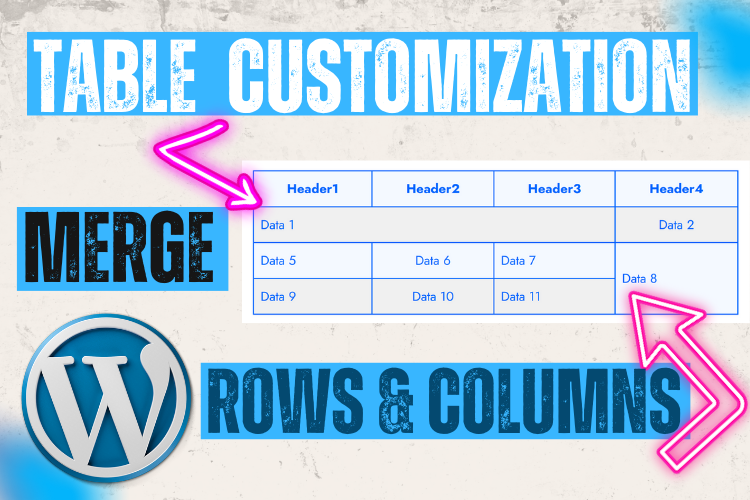
A tutorial on how to combine table rows and columns in WordPress using Gutenberg and Classic editors
Classic Editor Table MergeCombine Rows and ColumnsGutenberg Editor Table TipsWordPress blog formattingWordPress Table Formatting
PostUploader.com
December 2, 2024
Blog Post Formatting Guides
0 Comments:

How to Combine Table Rows and Columns in WordPress – A Step-by-Step Guide

Tables can significantly enhance the readability and structure of your WordPress blog posts, but they often require customization to better suit your needs.

Whether you’re working with WordPress’s Gutenberg block editor or the Classic editor, merging table rows and columns is a valuable skill to master.

In this tutorial, you’ll learn how to combine table rows and columns like a pro. The step-by-step process, explained for both Gutenberg and Classic editors, will help you create cleaner, more professional tables.

👉 Watch the video below for a visual guide that complements this tutorial.

  • Combining Table Rows and Columns in WordPress
    • Why Merge Rows and Columns in WordPress Tables?
    • Steps to Merge Rows and Columns Using Gutenberg
      • Step 1: Open the Post in Gutenberg Editor
      • Step 2: Access the Table Block
      • Step 3: Merge Rows
      • Step 4: Merge Columns
      • Step 5: Clean Up Extra Cells
      • Step 6: Save Changes
    • Merging Rows and Columns in the Classic Editor
      • Step 1: Open the Post in Classic Editor
      • Step 2: Switch to Text Mode
      • Step 3: Edit Table Code
      • Step 4: Remove Extra Cells
      • Step 5: Save Changes
  • Troubleshooting Common Issues
  • Tips for Optimizing Your Tables
  • FAQs
  • Conclusion

Combining Table Rows and Columns in WordPress

Why Merge Rows and Columns in WordPress Tables?

Merging rows and columns can declutter your table, align data for better readability, and enhance the visual appeal of your content. This method is particularly useful when consolidating related data under single headers or creating layouts for detailed comparison.

Steps to Merge Rows and Columns Using Gutenberg

Step 1: Open the Post in Gutenberg Editor

Navigate to your WordPress dashboard, click Posts, and select the post you want to edit. Open the post using the Gutenberg block editor.

Step 2: Access the Table Block

Click on the table you wish to edit. Locate the three-dot menu at the top-right corner of the block toolbar and select Edit as HTML.

Step 3: Merge Rows

  • Identify the rows you want to merge by searching for the relevant <td> tags.
  • For instance, to combine data one and data two, locate the <td> tag of data one.
  • Add the attribute colspan="2" immediately after the <td> tag to merge two cells horizontally.

Step 4: Merge Columns

  • To merge data eight and data twelve vertically, locate the <td> tag for data eight.
  • Add the attribute rowspan="2".

Step 5: Clean Up Extra Cells

Remove any additional <td> tags or data that extend beyond the merged cells to ensure proper alignment.

Step 6: Save Changes

Click Save or Update. Refresh the post on the front end to see your merged table.

Merging Rows and Columns in the Classic Editor

Step 1: Open the Post in Classic Editor

From your WordPress dashboard, open the desired post in the Classic editor.

Step 2: Switch to Text Mode

Switch to the Text view of the editor to access the HTML structure of your table.

Step 3: Edit Table Code

  • For row merging, add colspan="2" to the <td> tag of the starting cell.
  • For column merging, use rowspan="2".

Step 4: Remove Extra Cells

Just like in Gutenberg, remove unnecessary <td> tags to avoid misalignment.

Step 5: Save Changes

Click Save Draft or Update, and preview the post to ensure the table appears as intended.

Troubleshooting Common Issues

  • Misalignment: Ensure there are no leftover <td> tags after merging.
  • Unexpected Breaks: Check that all <td> and <tr> tags are properly opened and closed.
  • Header Overlaps: Adjust header alignment by merging cells under the correct headers.

“The devil is in the details,” as they say, so careful attention to the HTML structure is essential when merging cells.

Tips for Optimizing Your Tables

  1. Use Consistent Dimensions: Ensure table rows and columns have balanced spacing.
  2. Test on Mobile: Preview your table on different devices to ensure responsiveness.
  3. Leverage Plugins: Tools like TablePress can simplify complex table formatting.

FAQs

To merge more than two cells, increase the value in colspan or rowspan to the desired number of cells. For example, use colspan="3" to merge three horizontal cells.

Check for overlapping <td> tags and ensure you’ve removed any unused cells.

Some WordPress plugins, like TablePress, allow merging through an intuitive interface without coding.

It can. Always preview your table on various devices to ensure readability.

colspan merges cells horizontally across columns, while rowspan merges them vertically across rows.

Yes, revert the HTML code by removing the colspan or rowspan attribute and re-adding individual <td> tags.

Conclusion

Merging table rows and columns in WordPress is a simple yet impactful way to improve your content’s clarity and design. Whether using the Gutenberg editor or the Classic editor, following these steps ensures a professional finish.

👉 Watch the video above for a detailed walkthrough of the process.

Need further assistance? Contact us here or drop a comment below. Don’t forget to subscribe to our YouTube channel for more tutorials and tips.


  • Classic Editor Table Merge
  • Combine Rows and Columns
  • Gutenberg Editor Table Tips
  • WordPress blog formatting
  • WordPress Table Formatting
Share
Prev Post Next Post

Recent Posts

Before vs. After: How Blog Post Formatting Transforms the Same Content
May 19, 2025
Blog Post Formatting Services
Weekly Blog Post Formatting Services: Save Time and Improve Quality
May 4, 2025
how to format a blog post
How to Format a Blog Post Like a Pro: The Ultimate Guide to Presenting Your Blog Beautifully
Apr 9, 2025

Tags

  • Adding Featured Images
  • Add Media and Text in WordPress
  • Add Text Over Images in WordPress
  • AffiliateX Plugin
  • Affiliate X Plugin
  • Blog Engagement
  • blog formatting
  • Blog Formatting Tips
  • Blogging Tips
  • Blog Post Formatting
  • Blog Post Optimization
  • Business
  • classic editor
  • Combine Media and Text in WordPress
  • Digital
  • Funds
  • Gutenberg editor
  • Gutenberg Editor Tips
  • Install Jetpack Plugin
  • Jetpack Features Guide
  • Kadence Block
  • Kadence Blocks
  • Leadership
  • SEO Optimization
  • Tech
  • Text Overlay in WordPress
  • WordPress Blog Optimization
  • WordPress Blog Post Formatting
  • WordPress Blog Tips
  • WordPress Content Management
  • WordPress Customization
  • WordPress Design Without Photoshop
  • WordPress Editing Tips
  • WordPress formatting
  • WordPress Image Upload
  • WordPress Media and Text Block
  • WordPress Plugin
  • WordPress Plugins
  • WordPress SEO
  • WordPress Text Formatting
  • WordPress Tips
  • WordPress Tutorial
  • WordPress tutorials
  • WordPress user roles
  • WordPress without Plugins
PostUploader.com

Quick Contact

75 E 3rd St Sheridan, WY 82801, USA info@postuploader.com +1 (307) 310-2432

We accept payments via
Stripe, including Visa,
MasterCard, American
Express, Discover, and
other major credit and debit
cards.

About

  • Consumers
  • Growth
  • Corporate
  • Business

Services

  • Consumers
  • Growth
  • Corporate
  • Business

Industries

  • Consumers
  • Growth
  • Corporate
  • Business
  • Contact Us
  • Privacy Policy
  • Terms of Service & Refund Policy

©2022 - Post Uploader, All Rights Reserved.

PostUploader
Our specialist team understands the importance of maintaining a lasting relationships with clients to deliver specific investment solutions.
Contact Us

Contact Info

75 E 3rd St Sheridan, WY 82801, USA info@postuploader.com +1 (307) 310-2432
Live Chat
1
Scan the code
Message Us on WhatsApp
Hello,
Welcome to PostUploader.com
May I help with your Blog Post Formatting and Publishing?
Start a Chat
