
Better Blog Formatting. Better Presentation. Better Search Results. Get Started
Facebook LinkedIn WhatsApp YouTube
Post Uploader
  • Home
  • About
    • About Us
    • Leadership Team
    • Awards & Recognition
    • Request Consultation
    • Help & FAQs
    • Careers
    • Contact Us
  • Pricing Plans
  • Services

    Services

    • Blog Formatting & Publishing
    • eCommerce Product Listing
    • Website Content Population
    • AI Workflow Automation
    • Starter Website Package
    • Virtual Assistant Support

    Industries

    • Banking & Finance
    • Sciences & Healthcare
    • Technology & Software
    • Education & Training
    • Hospitality & Leisure
    • Power & Utilities
  • Case Studies
  • Blog
Get in Touch Get in Touch
  • Home
  • Blog
  • Blog Post Formatting Guides
  • How to Add Tabbed Style Content Using Kadence Block in WordPress
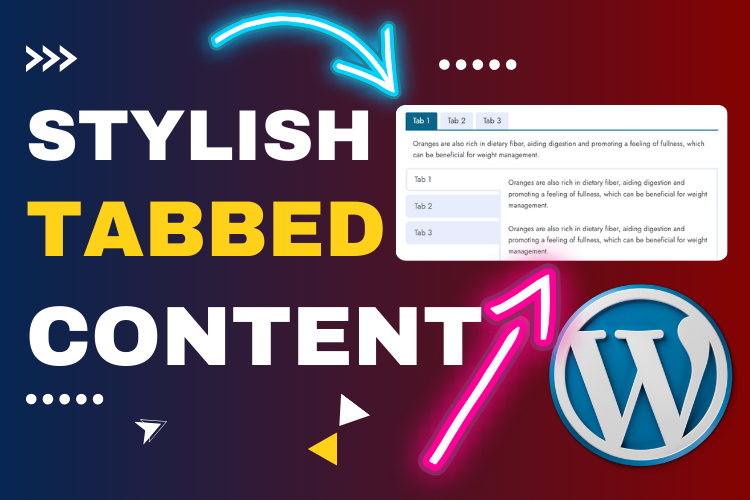
Tabbed Style Content with Kadence Block
Content OrganizationKadence BlockTabbed ContentWordPress PluginsWordPress Tabs
PostUploader.com
January 9, 2025
Blog Post Formatting Guides
0 Comments:

How to Add Tabbed Style Content Using Kadence Block in WordPress

Creating tabbed content is a great way to improve user experience on your WordPress website. Whether you’re organizing FAQ sections, feature lists, or multi-step tutorials, using Kadence Block’s tab feature makes the process simple and visually appealing.

In this guide, you’ll learn how to add customizable tabbed style content using the Kadence Block plugin for your WordPress blog posts and pages.

Watch this tutorial for a step-by-step demonstration:

  • Why Use Kadence Block for Tabbed Content?
    • Step 1: Installing the Kadence Block Plugin
    • Step 2: Adding a Tabbed Style Section in WordPress
    • Step 3: Customizing the Tabs Block Layout
      • Layout Options:
    • Step 4: Styling the Tabs for a Professional Look
      • Tab Title Styling:
      • Content Area Styling:
    • Step 5: Adding Content Inside Tabs
    • Step 6: Enhancing Tab Interaction and Accessibility
    • Best Practices for Using Tabbed Content Effectively
  • Frequently Asked Questions (FAQs)
  • Conclusion: Organize Your Content Like a Pro!

Why Use Kadence Block for Tabbed Content?

Kadence Block offers a dedicated Tabs Block with complete design flexibility, making it easier than ever to create stylish, professional tabbed sections without coding.

Benefits of Using Tabbed Style Content:

  • Improved Content Organization: Display large amounts of content compactly.
  • Enhanced User Experience: Users can access information without endless scrolling.
  • SEO Friendly: Keep content structured and scannable for better rankings.

Step 1: Installing the Kadence Block Plugin

To get started, you need to install the Kadence Block Plugin:

  1. Log in to your WordPress Dashboard.
  2. Navigate to Plugins > Add New.
  3. Search for Kadence Block.
  4. Click Install Now and then Activate.

You now have access to multiple content blocks, including the Tabs Block.

Step 2: Adding a Tabbed Style Section in WordPress

Once the plugin is activated, follow these steps to add tabbed content to a post or page:

  1. Open your WordPress Post or Page Editor.
  2. Click the + icon and search for Tabs.
  3. Select the Tabs Block provided by Kadence Block.
  4. Choose from the available tab styles and layouts.

Step 3: Customizing the Tabs Block Layout

After adding the block, you can begin customizing it using the block settings panel on the right side of your editor.

Layout Options:

  • Vertical or Horizontal Layouts: Choose between a vertical or horizontal tab layout.
  • Initial Tab Selection: Set the default tab that opens when the page loads.
  • Number of Tabs: Easily add or remove tabs using the block toolbar.

Step 4: Styling the Tabs for a Professional Look

The Style Tab in the Kadence Block plugin provides advanced design control to match your website’s branding.

Tab Title Styling:

  • Change title color for normal, hover, and active states.
  • Adjust background colors and border styles for each tab.

Content Area Styling:

  • Modify content background color and border settings.
  • Add padding and adjust border radius for a softer look.

Step 5: Adding Content Inside Tabs

Adding content within each tab is straightforward.

  1. Click on a Tab to start editing its content.
  2. Use the block editor to insert paragraphs, headings, images, lists, or buttons.
  3. Repeat the process for each tab you create.

You can even use nested blocks for advanced layouts inside your tabs!

Step 6: Enhancing Tab Interaction and Accessibility

Kadence Block offers several features to make your tabbed content more interactive and accessible:

  • Hover Effects: Customize hover animations and color changes for better interaction.
  • Icons for Tabs: Add icons next to your tab titles for better visual representation.
  • Responsive Design: Ensure the tabs adjust perfectly on mobile, tablet, and desktop devices.

Best Practices for Using Tabbed Content Effectively

  • Keep It Simple: Don’t overload tabs with excessive content.
  • Use Descriptive Labels: Clearly label each tab for clarity.
  • Test for Responsiveness: Ensure tabs work on all screen sizes.

Frequently Asked Questions (FAQs)

Yes, Kadence Block offers a free version with all essential tab styling features.

Absolutely! It’s designed for both beginners and advanced users with drag-and-drop simplicity.

Yes, the Tabs Block allows you to add icons alongside text for better visualization.

Yes, the Kadence Block Tabs feature is 100% responsive and adjusts perfectly for all devices.

Yes, you can use nested blocks inside tabs for more complex layouts.

Conclusion: Organize Your Content Like a Pro!

Adding Tabbed Style Content using Kadence Block is an excellent way to present information in a clean, organized manner. With its user-friendly customization options, you can create visually appealing tabs that match your website’s style.

👉 Ready to transform your blog posts with tabs?
Download Kadence Block Now

✅ Don’t forget to subscribe to our YouTube Channel for more tutorials:
Subscribe Now

💬 Need help formatting your WordPress blog posts? Contact us here: Contact Us

  • Content Organization
  • Kadence Block
  • Tabbed Content
  • WordPress Plugins
  • WordPress Tabs
Share
Prev Post Next Post

Recent Posts

Before vs. After: How Blog Post Formatting Transforms the Same Content
May 19, 2025
Blog Post Formatting Services
Weekly Blog Post Formatting Services: Save Time and Improve Quality
May 4, 2025
how to format a blog post
How to Format a Blog Post Like a Pro: The Ultimate Guide to Presenting Your Blog Beautifully
Apr 9, 2025

Tags

  • Adding Featured Images
  • Add Media and Text in WordPress
  • Add Text Over Images in WordPress
  • AffiliateX Plugin
  • Affiliate X Plugin
  • Blog Engagement
  • blog formatting
  • Blog Formatting Tips
  • Blogging Tips
  • Blog Post Formatting
  • Blog Post Optimization
  • Business
  • classic editor
  • Combine Media and Text in WordPress
  • Digital
  • Funds
  • Gutenberg editor
  • Gutenberg Editor Tips
  • Install Jetpack Plugin
  • Jetpack Features Guide
  • Kadence Block
  • Kadence Blocks
  • Leadership
  • SEO Optimization
  • Tech
  • Text Overlay in WordPress
  • WordPress Blog Optimization
  • WordPress Blog Post Formatting
  • WordPress Blog Tips
  • WordPress Content Management
  • WordPress Customization
  • WordPress Design Without Photoshop
  • WordPress Editing Tips
  • WordPress formatting
  • WordPress Image Upload
  • WordPress Media and Text Block
  • WordPress Plugin
  • WordPress Plugins
  • WordPress SEO
  • WordPress Text Formatting
  • WordPress Tips
  • WordPress Tutorial
  • WordPress tutorials
  • WordPress user roles
  • WordPress without Plugins
PostUploader.com

Quick Contact

75 E 3rd St Sheridan, WY 82801, USA info@postuploader.com +1 (307) 310-2432

We accept payments via
Stripe, including Visa,
MasterCard, American
Express, Discover, and
other major credit and debit
cards.

About

  • Consumers
  • Growth
  • Corporate
  • Business

Services

  • Consumers
  • Growth
  • Corporate
  • Business

Industries

  • Consumers
  • Growth
  • Corporate
  • Business
  • Contact Us
  • Privacy Policy
  • Terms of Service & Refund Policy

©2022 - Post Uploader, All Rights Reserved.

PostUploader
Our specialist team understands the importance of maintaining a lasting relationships with clients to deliver specific investment solutions.
Contact Us

Contact Info

75 E 3rd St Sheridan, WY 82801, USA info@postuploader.com +1 (307) 310-2432
Live Chat
1
Scan the code
Message Us on WhatsApp
Hello,
Welcome to PostUploader.com
May I help with your Blog Post Formatting and Publishing?
Start a Chat


