
Better Blog Formatting. Better Presentation. Better Search Results. Get Started
WhatsApp LinkedIn Facebook YouTube
Post Uploader
  • Home
  • About
    • About Us
    • Leadership Team
    • Recognition & Trust
    • Request Consultation
    • Help & FAQs
    • Careers
    • Contact Us
  • Pricing Plans
  • Services

    Our Services

    • Blog Formatting & Publishing
    • eCommerce Product Listing
    • Get a Website
    • Website Content Population
    • AI Workflow Automation
    • Virtual Assistant Support

    Our Clients

    • Digital Marketing Agencies
    • Small & Growing Businesses
    • Startup Companies
    • SaaS Companies
    • Travel & Lifestyle Blogs
    • Recipe & Food Websites
  • Case Studies
  • Blog
Get in Touch Get in Touch
  • Home
  • Blog
  • Blog Post Formatting Guides
  • How to Easily Add Featured Image in WordPress
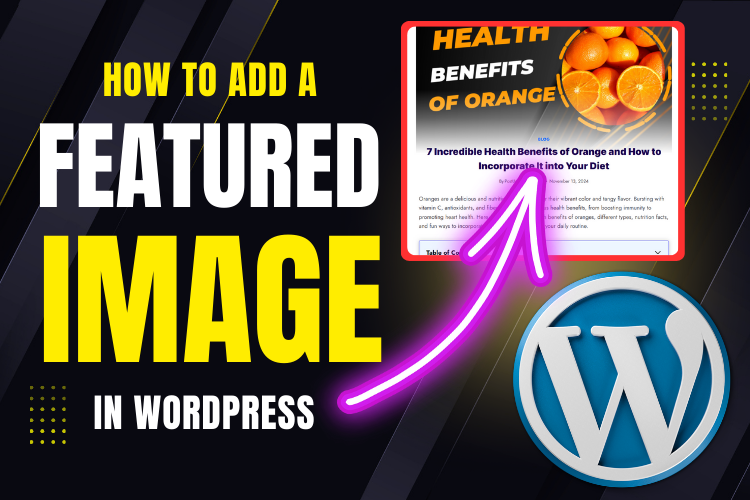
Add Featured Image in WordPress
Adding Featured ImagesFeatured Image in WordPressSEO Image OptimizationWordPress Blog ImageWordPress tutorials
PostUploader.com
December 10, 2024
Blog Post Formatting Guides
0 Comments:

How to Easily Add Featured Image in WordPress

Featured images are the face of your blog posts, making them visually appealing and more likely to attract readers. Whether you’re using the Gutenberg editor or the Classic editor, adding a featured image is simple and can make a huge difference.

Let’s dive into the step-by-step process of adding featured images to WordPress blogs.

“A picture is worth a thousand words, but in blogging, it’s worth a thousand clicks.”

Images play a crucial role in content marketing. They enhance readability, boost engagement, and improve your blog’s SEO. The featured image, often displayed prominently above a post, is particularly important.

It sets the tone for the article, grabs attention, and represents your content in search results and social media previews.

If you’re wondering how to add a featured image in WordPress, this guide will show you the exact steps using both the Gutenberg editor and the Classic editor.

For a more in-depth tutorial, check out the YouTube video below:

  • Adding a Featured Image in WordPress Using Gutenberg Editor
    • 1. Navigate to the Post Section
    • 2. Locate the Featured Image Option
    • 3. Remove or Add a Featured Image
    • 4. Upload or Choose from Media Library
    • 5. Add Alt Text and Caption
    • 6. Save and Preview
  • Adding a Featured Image Using Classic Editor
    • 1. Open the Post in Classic Editor
    • 2. Scroll Down to Find Featured Image Section
    • 3. Set Featured Image
    • 4. Optimize Image SEO
    • 5. Save Changes
  • Why Alt Text is Crucial for Featured Images
  • Common Problems When Adding Featured Images
  • FAQs
  • Conclusion

Adding a Featured Image in WordPress Using Gutenberg Editor

The Gutenberg editor provides a user-friendly way to manage your WordPress blog.

Here’s how you can add or update the featured image in your posts:

1. Navigate to the Post Section

After opening your WordPress dashboard, click on the post you want to edit. This will take you to the Gutenberg editor interface.

2. Locate the Featured Image Option

On the right-hand side of the screen, you’ll see a panel labeled Post. Expand this section to find the Featured Image option.

3. Remove or Add a Featured Image

If an image is already set, you’ll see it displayed here. To change it, simply click Remove Featured Image and then click Set Featured Image.

4. Upload or Choose from Media Library

You can now either upload a new image from your computer or choose an existing one from the Media Library.

5. Add Alt Text and Caption

It’s important to fill in the Alt Text field. This not only improves accessibility but also helps search engines understand your image. Add a caption if necessary.

6. Save and Preview

Once you’ve set the image, click Update to save your changes. Use the Preview button to ensure the image appears as intended.

Adding a Featured Image Using Classic Editor

If you’re still using the Classic editor, adding a featured image is just as straightforward. Here’s how:

1. Open the Post in Classic Editor

Navigate to the post you want to edit and select Edit with Classic Editor.

2. Scroll Down to Find Featured Image Section

Unlike the Gutenberg editor, the featured image section is located below the main text editor.

3. Set Featured Image

Click on the Set Featured Image button. Like with Gutenberg, you’ll be directed to the Media Library where you can upload or select your image.

4. Optimize Image SEO

Don’t forget to add Alt Text for SEO purposes before clicking Set Featured Image.

5. Save Changes

Hit the Update button to apply the changes and view the updated post.

Why Alt Text is Crucial for Featured Images

Alt text, short for alternative text, is a description of an image. It improves your blog’s accessibility and helps search engines understand your content. For instance, if your image fails to load, the alt text will describe the image’s purpose. Here’s an example of effective alt text:

  • Poor Alt Text: “image1.jpg”
  • Effective Alt Text: “A step-by-step guide to adding featured images in WordPress.”

“SEO isn’t about tricking search engines; it’s about creating a great user experience.”

Common Problems When Adding Featured Images

Even with a clear tutorial, some issues might arise.

Here are solutions to common problems:

  • Image Not Displaying Properly: Ensure the file format is JPEG or PNG and the size is optimized for web usage.
  • Unable to Find Featured Image Option: Check your theme settings; some themes may hide the featured image option.
  • Slow Page Load Times: Use an image compression plugin to optimize the image file size.

FAQs

Use an online image editor or WordPress plugins like Smush or EWWW Image Optimizer to adjust the dimensions.

No, WordPress only supports one featured image per post. However, you can add additional images within the post content.

The size depends on your theme, but a common dimension is 1200×628 pixels.

Ensure you have installed an SEO plugin like Yoast or Rank Math to set Open Graph tags for social media.

Yes, you can use plugins like Default Featured Image to automatically set a default image when none is uploaded.

Conclusion

Adding a featured image in WordPress is an essential skill for any blogger. It not only enhances your post visually but also boosts SEO and reader engagement. Whether you prefer the Gutenberg editor or the Classic editor, the steps are simple and effective.

For a more detailed walkthrough, watch the embedded video above. It provides additional tips and insights to master featured image optimization.

Don’t forget to subscribe to our YouTube channel for more WordPress tutorials. If you have any questions or need help with blog formatting, contact us today!


  • Adding Featured Images
  • Featured Image in WordPress
  • SEO Image Optimization
  • WordPress Blog Image
  • WordPress tutorials
Share
Prev Post Next Post

Recent Posts

Before vs. After: How Blog Post Formatting Transforms the Same Content
May 19, 2025
Blog Post Formatting Services
Weekly Blog Post Formatting Services: Save Time and Improve Quality
May 4, 2025
how to format a blog post
How to Format a Blog Post Like a Pro: The Ultimate Guide to Presenting Your Blog Beautifully
Apr 9, 2025

Tags

  • Adding Featured Images
  • Add Media and Text in WordPress
  • Add Text Over Images in WordPress
  • AffiliateX Plugin
  • Affiliate X Plugin
  • Blog Engagement
  • blog formatting
  • Blog Formatting Tips
  • Blogging Tips
  • Blog Post Formatting
  • Blog Post Optimization
  • Business
  • classic editor
  • Combine Media and Text in WordPress
  • Digital
  • Funds
  • Gutenberg editor
  • Gutenberg Editor Tips
  • Install Jetpack Plugin
  • Jetpack Features Guide
  • Kadence Block
  • Kadence Blocks
  • Leadership
  • SEO Optimization
  • Tech
  • Text Overlay in WordPress
  • WordPress Blog Optimization
  • WordPress Blog Post Formatting
  • WordPress Blog Tips
  • WordPress Content Management
  • WordPress Customization
  • WordPress Design Without Photoshop
  • WordPress Editing Tips
  • WordPress formatting
  • WordPress Image Upload
  • WordPress Media and Text Block
  • WordPress Plugin
  • WordPress Plugins
  • WordPress SEO
  • WordPress Text Formatting
  • WordPress Tips
  • WordPress Tutorial
  • WordPress tutorials
  • WordPress user roles
  • WordPress without Plugins
PostUploader.com

Post Uploader LLC

75 E 3rd St Sheridan, WY 82801, USA info@postuploader.com +1 (307) 310-2432

About

  • About Us
  • Recognition & Trust
  • Leadership Team
  • Blog

Our Services

  • Blog Formatting & Publishing
  • eCommerce Product Listing
  • Get a Website
  • Website Content Population
  • AI Workflow Automation
  • Virtual Assistant Support

Our Clients

  • Small & Growing Businesses
  • Digital Marketing Agencies
  • IT & Technology Businesses
  • eCommerce Businesses
  • Bloggers & Niche Websites
  • Physiotherapy & Healthcare Websites

Important Links

  • Privacy Policy
  • Terms of Service & Refund Policy
  • Request Consultation
  • FAQ's
  • Careers
  • Contact Us

©2022 - Post Uploader LLC, All Rights Reserved.

PostUploader
Focus on writing while we handle formatting, structure, images, and publishing—everything your blog needs to go live professionally.

Check our pricing below to get started today.
See Pricing Plans

Post Uploader LLC

75 E 3rd St Sheridan, WY 82801, USA info@postuploader.com +1 (307) 310-2432
Live Chat
1
Scan the code
Message Us on WhatsApp
Hello,
Welcome to PostUploader.com
May I help with your Blog Post Formatting and Publishing?
Start a Chat
